2FA Crypto Guide: Set Up Two-Factor Authentication Safely
2FA crypto guide: set up two-factor authentication safely
What you'll accomplish with 2FA crypto security
By the end of this guide, you will have two-factor authentication turned on for your crypto exchange accounts, a safer backup plan, and a clear way to recover access if your phone is lost. You will also know when an app is enough and when a hardware key is worth the extra step.
This is a beginner-first guide, but it does not stop at scanning a QR code. Good 2FA crypto protection means pairing your login code with recovery codes, withdrawal controls, phishing awareness, and a backup device plan. As of March 2026, that mix matters more than ever because attackers often target resets, fake login pages, and cloud backups instead of trying to break the authenticator app itself.
Why 2FA matters more in crypto than ordinary apps
If someone steals a streaming account, customer support can usually reverse the damage. Crypto is different. Once funds leave an exchange account or self-custody wallet, the transfer may settle on-chain with no chargeback path.
Chainalysis reported about $2.2 billion in stolen crypto during 2024 (Chainalysis, Jan. 2025). That number is not only about exchange logins, but it shows why account-level security should be treated as part of your asset protection plan, not as an optional setting.
Andreas Antonopoulos, author and educator, has long taught that crypto users must design security around irreversible transactions. That means your login method, recovery email, withdrawal rules, and seed phrase storage all matter together.
For this guide, use the account recovery triangle: protect the login, protect the recovery path, and protect withdrawals. If one side is weak, the whole setup is weak. This original framework is the fastest way to check whether your two factor authentication crypto setup protects real funds instead of only adding a code prompt.
What you'll need before you enable 2FA
Gather these items before you open any security page. Most lockouts happen because a person starts setup, closes the recovery-code screen, then realizes too late that the phone or app was not backed up.
Prerequisites checklist
- Your exchange login: Confirm your email, username, and password work before changing security settings.
- Your own phone: Use a personal iOS or Android device, not a shared tablet or work phone you might lose access to.
- An authenticator app: Install the google authenticator app from the official Android store or Apple app store, or choose another trusted time-based code app.
- Optional hardware key: A YubiKey or similar fido2 device gives stronger phishing resistance on exchanges that support security keys.
- A password manager: Use it for your exchange password, but do not store every recovery item in the same vault without a separate backup plan.
- A private setup space: Set up 2FA where no one can photograph your screen, QR code, or recovery codes.
Before you start, open your phone settings and turn on automatic date and time. Time-based codes rely on your phone clock. If your phone is off by even one refresh window, your exchange may reject the code.
A September 2023 alert tied SIM swapping to more than $48 million in losses (ic3.gov, Sept. 2023). That is why SMS should be a temporary fallback, not your main protection for meaningful crypto balances.
Warning: Do not keep recovery codes beside your exchange password. Backup codes can bypass your authenticator app, so store them offline in a locked drawer, safe, or sealed envelope. If you prefer digital storage, use a separate encrypted vault with a different master password.
Step 1: choose the right 2FA crypto method
Start by choosing the right second factor. The best method for you depends on account value, exchange support, travel habits, and how comfortable you are managing backups.
Authenticator app vs SMS vs hardware security key
Method | Security level | Phishing resistance | Recovery difficulty | Best use case |
|---|---|---|---|---|
SMS text code | Low | None, codes can be intercepted or moved through SIM swap | Easy through your carrier | Only when no stronger option is available |
Email code | Low to medium | Poor if your email is compromised | Easy through email recovery | Fallback alerts and low-risk accounts |
Authenticator app | High | Moderate because codes are not tied to the exact site URL | Medium, requires backup codes or app restore | Most exchange users and most daily crypto accounts |
Hardware security key | Highest | Very strong because the key checks the real domain | Hard unless you register a backup key | High balances, active traders, and admin accounts |
Passkey | Very high | Strong when supported by the platform and device | Medium, depends on platform recovery | Users who want phishing-resistant sign-in without carrying a separate key |
An authenticator app is the right starting point for most beginners. It removes the phone-carrier risk of SMS and works even when you are offline. Use SMS only if your exchange gives no stronger option, then upgrade when possible.
When a yubikey crypto setup makes sense
A hardware key such as a YubiKey is a small USB or NFC device you physically touch during sign-in. Its advantage is domain binding. If a fake site asks for approval, the key will not give the attacker a reusable code for the real exchange.
A yubikey crypto setup makes sense if you hold more than you would be comfortable losing, trade often, manage funds for a team, or have already received targeted phishing messages. You should buy two compatible keys, register both, and store the spare away from the daily key.
At the exchange-operator level, Brian Armstrong, co-founder and CEO of Coinbase, is a useful public reference point because Coinbase supports stronger user security options such as authenticator apps and security keys. Treat those settings as part of the account, not as an advanced-only feature.
Step 2: install and secure an authenticator app
Install your app before you start exchange setup. If you are using google authenticator crypto protection, download the app only from the official Android or Apple store listing and check the publisher before installing.
How TOTP codes work
TOTP means time-based one-time password. Your app and exchange share a secret setup key. They combine that secret with the current time to create the same 6-digit code. The code refreshes about every 30 seconds, so old codes expire quickly.
This is why your phone clock must stay synced. If codes fail, do not keep guessing. Turn on automatic time, wait for the next code, and try once more.
Google authenticator crypto setup basics
Open the authenticator app and tap the plus button. Choose scan QR code, point the camera at the exchange QR code, and confirm that a new exchange entry appears. If scanning fails, choose manual entry and type the setup key exactly as shown.
Google added encrypted cloud backup for its authenticator app in April 2023 (Google security blog, April 2023). If you enable that feature, protect the connected Google account with its own strong password and 2FA. Otherwise, a cloud account takeover can become an authenticator recovery problem.
Pro tip: pick recovery features before you need them
App type | Storage style | Backup option | Best fit |
|---|---|---|---|
google authenticator app | Local with optional account backup | Encrypted cloud backup | Beginners who want simple restore after a phone change |
microsoft authenticator app | Local with account backup | Cloud restore | Users already using a Microsoft account for security |
Local-only app | Device storage | Manual encrypted export | Privacy-focused users who will manage backups carefully |
Multi-device app | Encrypted sync | Cloud restore across devices | Users who value easy recovery and accept cloud-account risk |
Beginners often choose cloud-backed recovery because a broken phone is a common real-world failure. Privacy-focused users may prefer local-only storage, but they must export an encrypted backup and store it safely. Match the tool to your recovery habits, not to a theoretical threat model you will not maintain.
Step 3: enable 2FA on your crypto exchange account
Now turn on the setting at the exchange. The menu names vary, but the process is similar across major platforms.
- Log in to the exchange by typing the official URL or opening the official app yourself.
- Open security settings from your profile, account, or settings menu.
- Select 2FA, two-step verification, authenticator app, or time-based code.
- Scan the QR code with your authenticator app, or enter the setup key manually.
- Save backup codes offline before closing the page.
- Enter the code currently shown in your app before it refreshes.
- Confirm by clicking the enable, verify, or save button shown by the exchange.
- Test by signing out, signing back in, and confirming the prompt works.
Example flow: Crypto.com 2FA setup
Open the official Crypto.com app or exchange site. Go to settings, then security, then the 2FA option. Scan the QR code with your authenticator app, save the recovery key, and enter the 6-digit code to confirm.
Crypto.com can ask for 2FA during sign-in, withdrawals, transfers, and account changes. Expect to use the code for more than login. If the menu labels change, search the app settings for security or two-factor authentication before using any outside link.
Example flow: Coinbase 2FA setup
Open Coinbase, select your profile, then open security settings. Choose two-step verification, select an authenticator app or security key, and follow the QR code or hardware-key prompt. After saving, sign out and test a fresh login.
Coinbase says security keys provide the strongest protection against phishing on supported accounts (Coinbase help, accessed March 2026). If your account supports that option, consider adding it after your authenticator app is working.
Warning: never scan a QR code from an email link
If an email, direct message, or ad says set up 2FA here, stop. Attackers create fake setup pages that collect your password and one-time code in the same session. Always open the exchange app yourself or type the official URL by hand.
For a deeper look at those traps, read our guide to crypto phishing attacks before changing high-value account settings.
Step 4: add a YubiKey or hardware security key where supported
If your exchange supports security keys, fido2, webauthn, or passkeys, add a hardware key after your app-based 2FA is stable. This gives you phishing resistance that app codes cannot match.
A March 2024 report said passkey deployments covered more than 13 billion accounts across participating services (fidoalliance.org, March 2024). For crypto users, the key point is not the trend. The point is that domain-bound authentication is now widely supported enough to use on important accounts.
How to register a hardware security key
- Open security settings on the exchange from the official app or typed URL.
- Select add security key, passkey, or register hardware key.
- Insert or tap the key using USB, NFC, or the connector your device supports.
- Touch the key when the browser or app asks for proof of presence.
- Name the key with a plain label such as daily key or safe backup.
- Save and test by signing out and completing one fresh login.
Pro tip: buy and register two keys
Pro tip: Register a backup key during the same session. One key on your keychain and one key in a safe is much safer than one perfect key you might lose.
Use the primary-backup key rule: daily key in your possession, backup key stored offline, recovery codes stored separately. Yubico lists some YubiKey models at about $50 per key (Yubico store, 2025), so a two-key setup may cost less than one mistaken withdrawal.
Step 5: back up codes and test account recovery
Enabling 2FA is only half the job. The part that saves you later is recovery planning. Do this before you move meaningful funds to the account.
Save recovery codes before you log out
When the exchange displays recovery codes, print them or write them down. Do not keep only a screenshot, because a stolen phone can expose both the authenticator app and the screenshot folder.
Label the codes with the exchange name and date. Do not include the password on the same page. If you use one code, mark it used and generate a fresh set the next time you can access security settings.
Test a login from a second device
Use a second browser, private window, or spare device and sign in from scratch. This two-minute test confirms that your app entry works, your clock is synced, and you saved the correct recovery materials.
If the code fails, check time sync first. Then confirm you are reading the right exchange entry in the app. Duplicate entries are common when people scan the same QR code more than once during setup.
Warning: cloud sync can be convenient and risky
Cloud backup helps when you replace a phone. It also shifts trust to your cloud account. Protect that account with a unique passphrase, its own 2FA, and a regular review of signed-in devices.
Andreas Antonopoulos, author and educator, often frames security as a threat-model decision. For many retail users, the risk of losing access from a broken phone is greater than the risk of a properly protected encrypted backup. The best choice is the one you can maintain.
Step 6: use 2FA safely for withdrawals, wallets, and DeFi
2FA protects accounts on custodial services. It does not protect every crypto action. Know where it works and where it does not before you move funds.
2FA protects accounts, not seed phrases
On an exchange, the platform holds the private keys and your 2FA protects account access. In a self-custody wallet, your seed phrase controls the funds. If someone gets that phrase, an exchange 2FA code cannot stop them.
For self-custody, learn how to use a hardware wallet safely and consider MPC wallet security if you need shared signing or fewer single points of failure.
Chainalysis reported that scam revenue remained a major driver of retail harm in 2024 (Chainalysis, 2025). That is why 2FA is necessary but not enough. You still need to protect seed phrases, approvals, and the sites you connect to.
Add withdrawal allowlists and anti-phishing codes
- Withdrawal allowlist: Permit withdrawals only to saved wallet addresses. If a new address requires a 24 to 48 hour delay, leave that delay on.
- Anti-phishing code: Set a short personal code that appears in real exchange emails. Delete emails that do not show it.
- Device management: Remove old phones, browsers, and sessions you no longer use.
- Login and withdrawal alerts: Turn on email or push alerts so you see account activity quickly.
Think of 2FA as the door lock and withdrawal controls as the deadbolt. If an attacker gets inside through a stolen session, an allowlist can still block the outgoing transfer.
Troubleshoot common 2FA crypto problems
Most 2FA problems come from clock drift, a deleted app entry, a phone change, or a phishing reset attempt. Use the table before contacting support.
Problem | Likely cause | Fix |
|---|---|---|
Invalid code | Phone clock is out of sync | Turn on automatic time, wait for the next code, and try again once |
Lost phone | Device is gone or stolen | Use a printed backup code, then enroll a new device |
Deleted app entry | App was removed or restored without tokens | Use backup codes or the official exchange recovery page |
New phone | Authenticator entries were not migrated | Restore from encrypted backup or re-enroll from security settings |
Failed reset | Identity review is incomplete | Submit the required ID, selfie, and account details through the official portal |
Suspicious support message | Impersonator is creating urgency | Block the sender and open support only from the official site or app |
Why your authenticator code is not working
First, check your phone clock. TOTP is time-based, so even a small mismatch can fail. Turn on automatic date and time, then wait for the next 30-second code.
Second, check the app label. If you created more than one entry during setup, you may be reading the wrong code. Delete old duplicates only after one successful login confirms the correct entry.
Google support describes authenticator restore options for users who enable account sync (Google support, May 2023). If you did not enable backup, use exchange recovery codes instead of guessing codes repeatedly.
How to reset 2FA without getting scammed
If your backup codes are gone and your authenticator is inaccessible, use the official exchange recovery flow. Type the URL yourself or open the app directly. Expect identity checks, a review period, and a delay before withdrawals are fully available.
Never respond to someone on Telegram, Discord, X, WhatsApp, or email who claims they can reset 2FA for you. Real support will not ask for your password, seed phrase, or current authenticator code. These scams work like fake airdrop scams: they pressure you to act before you think.
Best practices: your 2026 crypto 2FA checklist
Use this checklist after setup and review it every few months. Pair it with a review of common crypto scams, because even a perfect login setup cannot stop you from approving a malicious transaction on a fake site.
Beginner checklist
- Use a unique password: Store it in a password manager and never reuse it across exchanges.
- Turn on an authenticator app: Use app-based codes instead of SMS wherever possible.
- Save recovery codes offline: Keep them away from your password and away from screenshots.
- Secure your email first: Your email can reset many exchange accounts, so protect it with strong 2FA too.
- Set an anti-phishing code: Make fake exchange emails easier to spot.
- Review sessions quarterly: Remove old devices, stale browser sessions, and unused API keys.
High-balance checklist
The ic3.gov 2024 annual report recorded more than $5.6 billion in crypto-related losses during 2024 (ic3.gov annual report, 2025). If your account holds meaningful funds, add stronger layers.
- Use a hardware security key: Make it your main sign-in factor where supported.
- Register a second key: Store the backup in a different secure location.
- Use a dedicated email: Keep crypto accounts separate from daily shopping, social, and newsletter accounts.
- Enable withdrawal allowlists: Restrict transfers to addresses you already trust.
- Move long-term holdings off exchanges: Keep only active trading funds online.
- Audit connected apps: Remove old API keys, wallet connections, and devices at least twice a year.
Summary and next steps
You now have a practical 2FA crypto plan: choose the right method, enable it carefully, back up recovery codes, test login, add hardware keys when supported, and lock down withdrawals. That is stronger than simply scanning a QR code and hoping you never lose your phone.
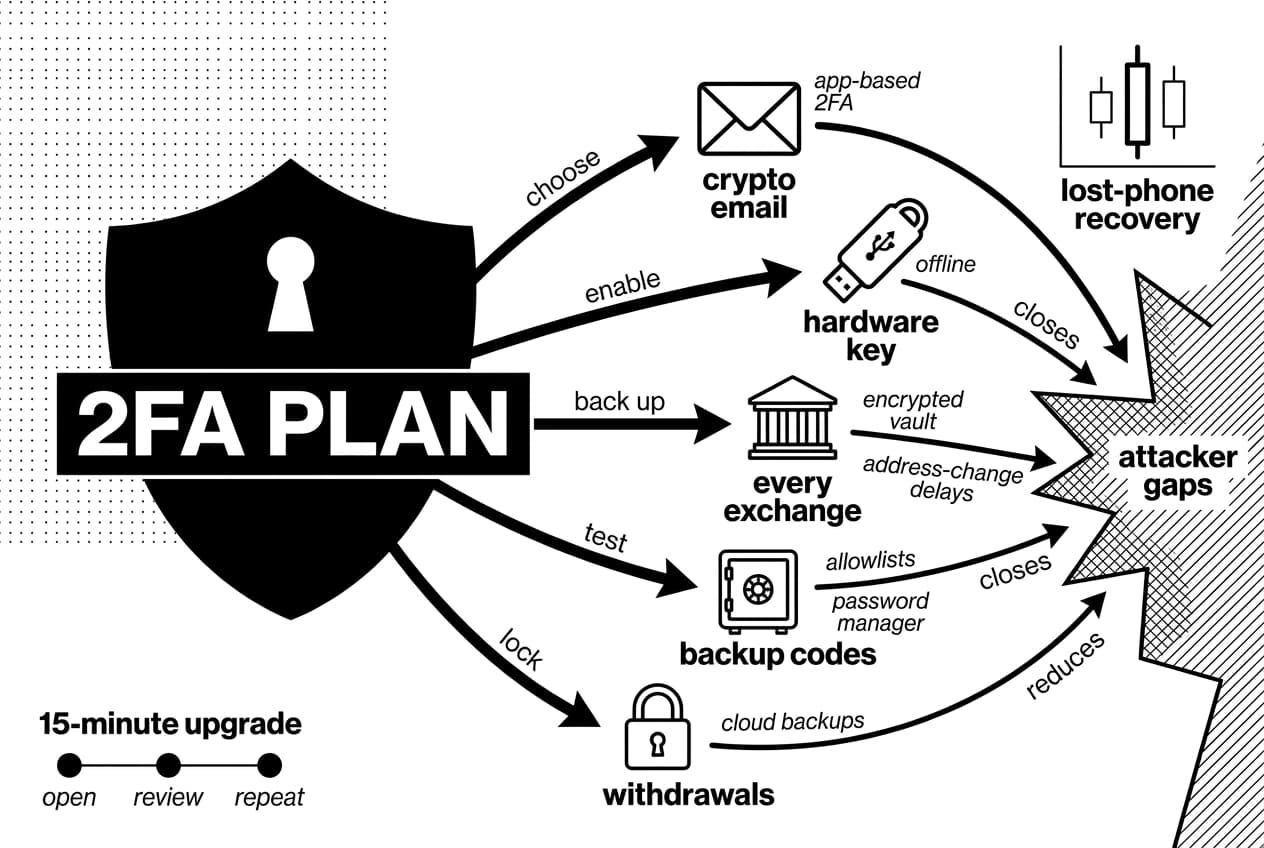
Do not stop with one exchange. Secure the email account tied to your crypto, your password manager, any cloud account that stores authenticator backups, and every exchange you use.
Your next 15-minute security upgrade
- Open your crypto email account and turn on app-based 2FA or a hardware key.
- Review exchange withdrawal settings and enable allowlists plus address-change delays.
- Find your backup codes and confirm they are offline or in a separate encrypted vault.
- Repeat for every platform in your password manager that touches crypto funds.
The best time to plan recovery is before an emergency. Take the next 15 minutes while this guide is open and close the gaps that attackers rely on.
Frequently Asked Questions
- How do I get my Crypto.com 2FA code?
- Your 2FA code comes from the authenticator app you linked during setup, not from Crypto.com directly. Open Google Authenticator, 2FAS, Microsoft Authenticator, or whichever app you connected, find the Crypto.com entry, and enter the current 6-digit code before it refreshes.
- Is 2FA really worth it for crypto?
- Yes, especially because most crypto transactions are irreversible. A compromised account can lead to unauthorized withdrawals, API abuse, or personal data exposure. Authenticator apps and hardware keys are not foolproof, but they dramatically reduce risk compared with relying on a password alone.
- What is a 2FA token?
- A 2FA token is either a temporary code generated by an authenticator app or a physical security key used to verify your identity at login. With TOTP apps, the token is typically a 6-digit code derived from a secret key combined with the current time, expiring roughly every 30 seconds.
- How do I reset my 2FA on a crypto exchange?
- Use the official exchange app or website recovery flow, which usually requires identity verification, a support review, and a waiting period. Never share authenticator codes, passwords, seed phrases, or documents with anyone claiming to be support through social media, email, or messaging apps.
- How do I set up 2FA on Crypto.com Exchange?
- Sign in, open Security Settings, and select Two-Factor Authentication. Scan the QR code with your authenticator app, save the recovery key somewhere secure, then enter the current 6-digit code to confirm. Exact menu labels may change over time, so check the current app for the latest steps.
- How do I enable two-factor authentication on Coinbase?
- Open Coinbase, go to account Security Settings, and select 2-Step Verification. Choose an authenticator app or security key, follow the QR code or hardware key prompt, then verify the setup with your first code. Test your login immediately afterward and save any provided recovery options.
- How do I use a 2FA authenticator app?
- Install a trusted authenticator app, tap Add Account, and scan the QR code shown by your exchange. Save the recovery key before finishing setup. Enter the 6-digit code into the exchange to confirm. Codes refresh roughly every 30 seconds, so keep your phone clock synced to avoid errors.
- How do I set up my YubiKey?
- Buy a compatible YubiKey, then open your exchange's Security Settings and choose Security Key or Passkey. Insert or tap the key, touch it when prompted, and give it a recognizable name. Before relying on it as your only method, register a second backup key to avoid being locked out.
- Should I buy a YubiKey for crypto?
- A hardware key is worth considering if you hold meaningful funds on exchanges, trade regularly, manage shared team accounts, or are concerned about phishing and SIM-swap attacks. It offers stronger protection than app-based 2FA, but you need a solid backup plan in case the key is lost or damaged.
- Where do I get my Google Authenticator code?
- Open the Google Authenticator app on your phone and find the entry for the exchange you linked by scanning its QR code or entering a setup key during registration. Use the displayed 6-digit code before it expires. Make sure you select the correct account if you have multiple entries listed.
- Which is better, Google Authenticator or Microsoft Authenticator?
- Both support TOTP codes for crypto accounts, so either works for basic 2FA. The real differences come down to backup options, device sync, recovery ease, and privacy preferences. Evaluate whether you want local-only storage or cloud-backed recovery, and consider how each fits your existing device ecosystem.
Sources
Author

Crypto analyst and blockchain educator with over 8 years of experience in the digital asset space. Former fintech consultant at a major Wall Street firm turned full-time crypto journalist. Specializes in DeFi, tokenomics, and blockchain technology. His writing breaks down complex cryptocurrency concepts into actionable insights for both beginners and seasoned investors.