Mining Overclock Guide (2026): Max Hashrate for NVIDIA & AMD

What is Mining Overclocking? (And Why It Matters)
When you hear "overclocking," you might imagine pushing a gaming PC to its absolute limits for a few extra frames per second. For crypto mining, however, the strategy is completely different. A successful gpu overclock mining setup isn't about raw speed; it's about finding peak efficiency.
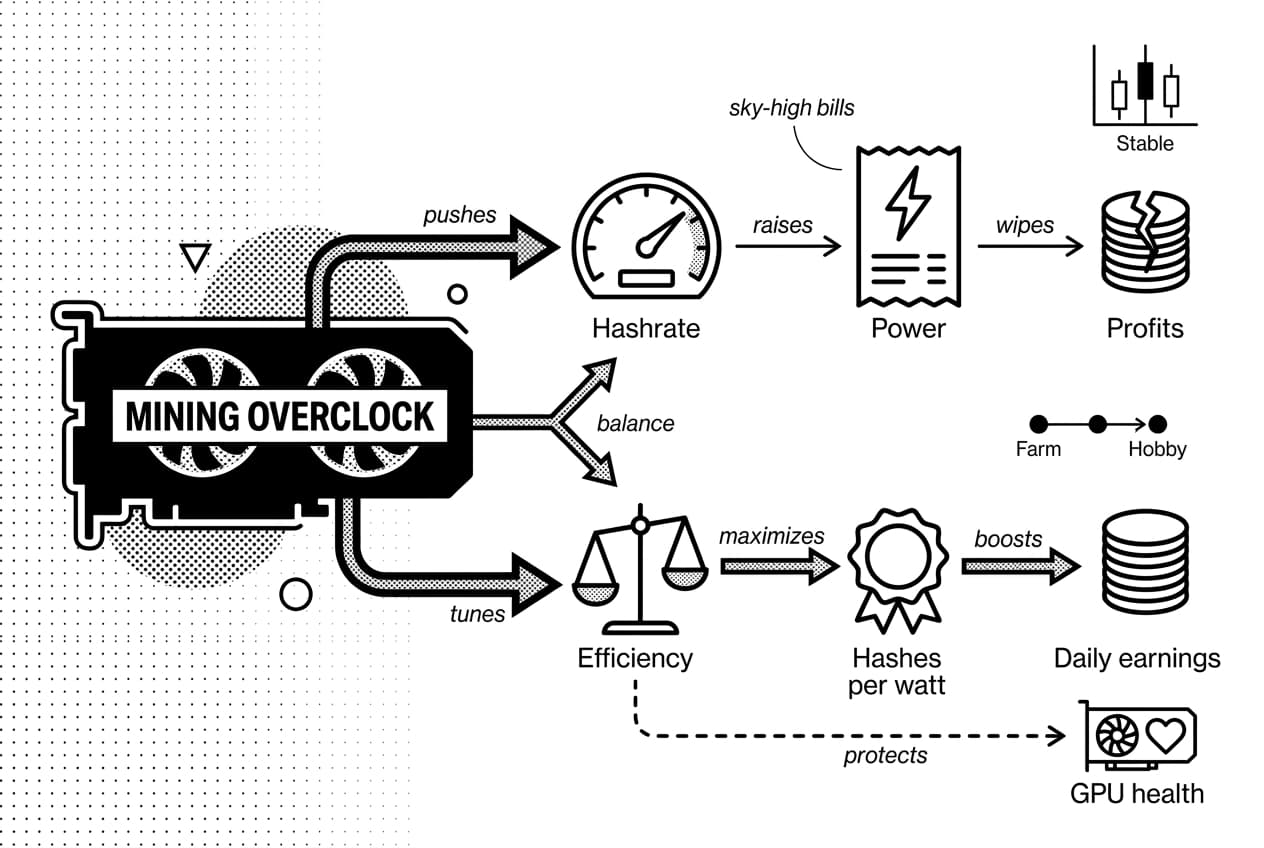
The entire goal is to find the perfect balance between your graphics card's hashrate—its raw mining power—and the electricity it consumes. Pushing for the highest possible hashrate often leads to sky-high power bills that can wipe out your profits. The real key to profitable mining is maximizing your hashes per watt, not just your total hashes.
So, why do miners bother? A proper mining overclock can drastically increase your daily earnings by lowering electricity costs while maintaining a strong, stable hashrate. This is true whether you're running a large farm or just getting started with some hobby bitcoin mining. It's the single most important skill for maximizing your mining revenue over the long term.
Prerequisites: Tools You'll Need for GPU Overclocking
Before you can begin to fine-tune your graphics card, you need the right software. A stable and profitable mining overclock requires a tool to apply your settings and a way to monitor the results in real-time. Let's get your digital toolkit assembled so you can start safely.
MSI Afterburner: The Industry Standard
MSI Afterburner is the most popular and trusted software for overclocking, and for good reason. It’s free, works with both NVIDIA and AMD cards (not just MSI brands!), and gives you direct control over core clock, memory clock, power limit, and fan speed. Head to the official MSI website to download and install it. This will be our primary tool for every step of your gpu overclock mining journey.
Mining Software with Built-in Overclocking
You might notice that some mining applications offer their own overclocking features. While convenient, they often lack the granular control and detailed monitoring provided by a dedicated program like Afterburner. For the best results and a deeper understanding of the process, we strongly recommend starting with a separate, specialized tool. This gives you the power to find the perfect balance for your specific card.
Understanding the Key Overclocking Settings
Now that you have your overclocking software open, you're probably looking at a dashboard with several sliders and graphs. It can seem intimidating, but we only need to focus on four core settings to achieve a great mining overclock. Mastering these is the key to balancing performance, power usage, and the health of your hardware for years to come.
Core Clock (MHz)
The core clock is the speed of the main graphics processing chip itself. While a higher core clock is fantastic for gaming, it's often less important for many mining algorithms and consumes a lot of power. For efficient gpu overclock mining, we frequently decrease the core clock or lock it at a specific low frequency. This simple tweak significantly reduces power draw and heat with minimal impact on your hashrate for memory-based coins.
Memory Clock (MHz)
This is where the magic happens for most popular mining algorithms. The memory clock controls the speed of your GPU's VRAM. Since many proof-of-work algorithms are memory-intensive, increasing this setting usually gives you the most significant boost in hashrate. We'll be carefully pushing this as high as it can go while remaining perfectly stable.
Power Limit (%)
Think of the power limit as a ceiling for how much electricity your GPU can use, shown as a percentage of its factory setting. Lowering the power limit is your number one tool for improving profitability. By restricting the power, you force the GPU to run more efficiently, generating far less heat and saving you money on your electricity bill.
Fan Speed (%)
Your GPU fans are critical for keeping temperatures in a safe range. A mining GPU runs 24/7, so the default automatic fan settings are rarely aggressive enough. For long-term stability and hardware longevity, you'll want to set a fixed fan speed or a custom curve that keeps your card cool. A cool card is a happy and stable mining card.
Step-by-Step: How to Overclock Your GPU for Mining
Now for the main event. This is where you’ll carefully tune your graphics card to find that perfect balance of performance and efficiency. The key here is patience. We will make small, incremental changes and test stability along the way. Rushing this process is the fastest way to an unstable system. Let's begin your first real mining overclock.
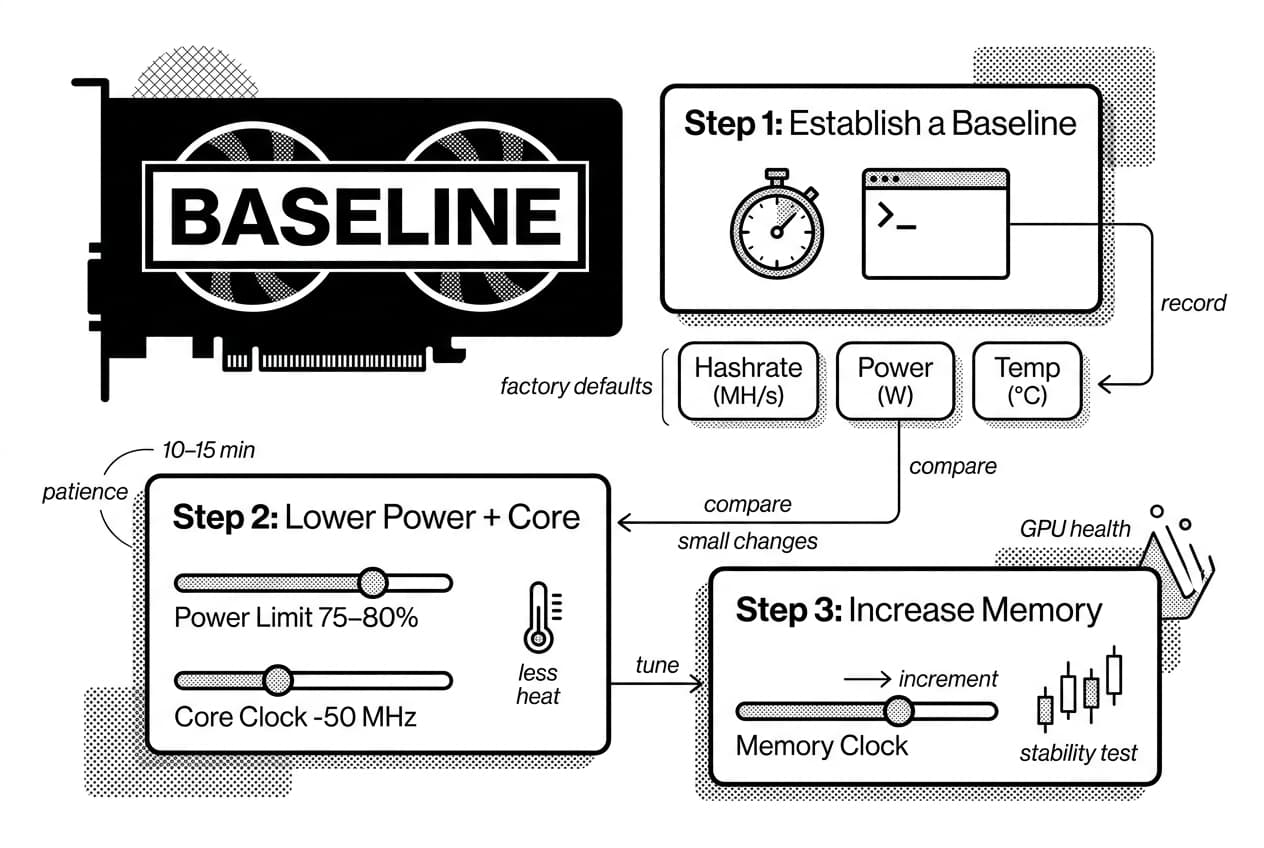
Step 1: Establish a Baseline
Before you adjust a single slider, you need a starting point. Fire up your mining software and let it run for about 10-15 minutes with your GPU at its factory default settings. Don't touch Afterburner yet! Grab a notepad or open a text file and write down three key numbers:
- Hashrate: Your mining speed (e.g., MH/s).
- Power Consumption: The wattage your GPU is drawing.
- Temperature: The core temperature of your GPU in degrees Celsius.
This baseline is your reference. Every change we make will be compared against these initial numbers to see if we're improving.
Step 2: Lower the Power Limit and Core Clock
It might seem backward, but our first move is to reduce power, not increase it. Most mining algorithms are sensitive to memory speed, not core speed. A maxed-out core clock often just generates extra heat and wastes electricity for no gain in hashrate. In MSI Afterburner, slide the Power Limit down to around 75-80%. Then, reduce the Core Clock by about -50 MHz. This creates a much more efficient foundation for our tune.
Step 3: Incrementally Increase Memory Clock
Here’s where we find that hidden hashrate. Start increasing the Memory Clock in small steps, such as +50 MHz at a time. After each single adjustment, let your miner run for at least 10 minutes. Watch closely for any signs of instability. These can include the mining software crashing, your whole PC freezing, or visual glitches (known as artifacts) if a monitor is connected. If your system is stable, repeat the process: add another +50 MHz and test again. When you finally hit a point of instability, dial it back by 25-50 MHz to find your stable maximum.
Step 4: Adjust Fan Curve for Optimal Cooling
Your GPU is now working hard, and the stock fan settings usually aren't aggressive enough for 24/7 mining. A hot card is an unhappy and short-lived card. In Afterburner's settings, find the fan tab and enable a custom fan curve. A simple starting point is to set the fan speed to 70% or 80% and leave it there. The goal is to keep your GPU core temperature consistently below 70°C. This simple change is vital for the long-term health of your hardware.
Step 5: Save Your Profile
Once you've found settings that deliver a good hashrate at a reasonable temperature and power draw, and it's been stable for at least an hour, it's time to save your work. In the Afterburner window, click the floppy disk (save) icon, and then click on one of the numbered profile slots. Now, any time you restart your computer, you can just open Afterburner and click that profile number to instantly apply your perfect gpu overclock mining settings.
The Art of Underclocking: Better Efficiency, More Profit
Now that you know how to increase your memory clock speed, let’s explore a technique that might seem backward at first: reducing your core clock and power limit. While pushing for the highest numbers is tempting, smart and profitable gpu overclock mining is an art of balance. This is where you gain a serious advantage.
Many popular mining algorithms today are memory-intensive. This means your hashrate is dictated by how fast your GPU's memory can operate, not its core processing speed. Running the core at full power is often like revving a car's engine in neutral—it burns a lot of fuel and creates a ton of heat without actually going anywhere faster.
By intentionally lowering your core clock and setting a stricter power limit, you dramatically cut down on electricity usage. For these algorithms, you'll see a huge drop in your power consumption with little to no reduction in your actual hashrate. Less power also means less heat, which puts less stress on your GPU's fans and internal components, promoting a longer lifespan for your hardware.
The goal of a great mining overclock isn't just the peak hashrate; it's the peak efficiency. Finding that perfect setting where you get the most hash for every watt of power consumed is what separates a hobbyist from a profitable miner. Underclocking the core is your key to achieving that optimal balance.
Key Risks of Mining Overclocking and How to Mitigate Them
Now that you know how to adjust your settings, it’s time to talk about safety. A successful mining overclock isn't just about chasing the highest numbers; it's about finding a stable, profitable setting that won't damage your expensive hardware. Pushing your GPU too hard can lead to serious problems, but thankfully, they are almost entirely preventable with a little care and attention.
Heat: The Enemy of Stability and Longevity
Every adjustment you make generates more heat. This is the single biggest risk to your GPU's lifespan. If a card runs too hot for too long, its components can degrade, leading to permanent damage. High temperatures also cause thermal throttling, where your GPU automatically slows down to protect itself, hurting your hashrate and defeating the purpose of overclocking. Always monitor your temperatures in your overclocking software. Ensuring you have proper cooling and airflow is non-negotiable for long-term mining.
Instability and Crashing
If your mining software crashes or your entire system freezes, don't panic. This is your computer's way of telling you the overclock is unstable. It's the most common sign that you've pushed either the memory or core clock too high for the voltage provided. When a crash happens, simply restart your system and dial back the last setting you changed by a small amount (e.g., 15-25 MHz on the memory). Finding the perfect gpu overclock mining setting is a process of finding that stable edge without falling over it.
Example Overclock Settings for Popular GPUs (NVIDIA & AMD)
Now that you understand the process, let's look at some real-world examples. Finding the perfect gpu overclock mining settings takes patience, but a good starting point can save you a lot of time. The table below lists common, efficiency-focused settings for popular cards. Think of these as a reference to get you started on the right path.
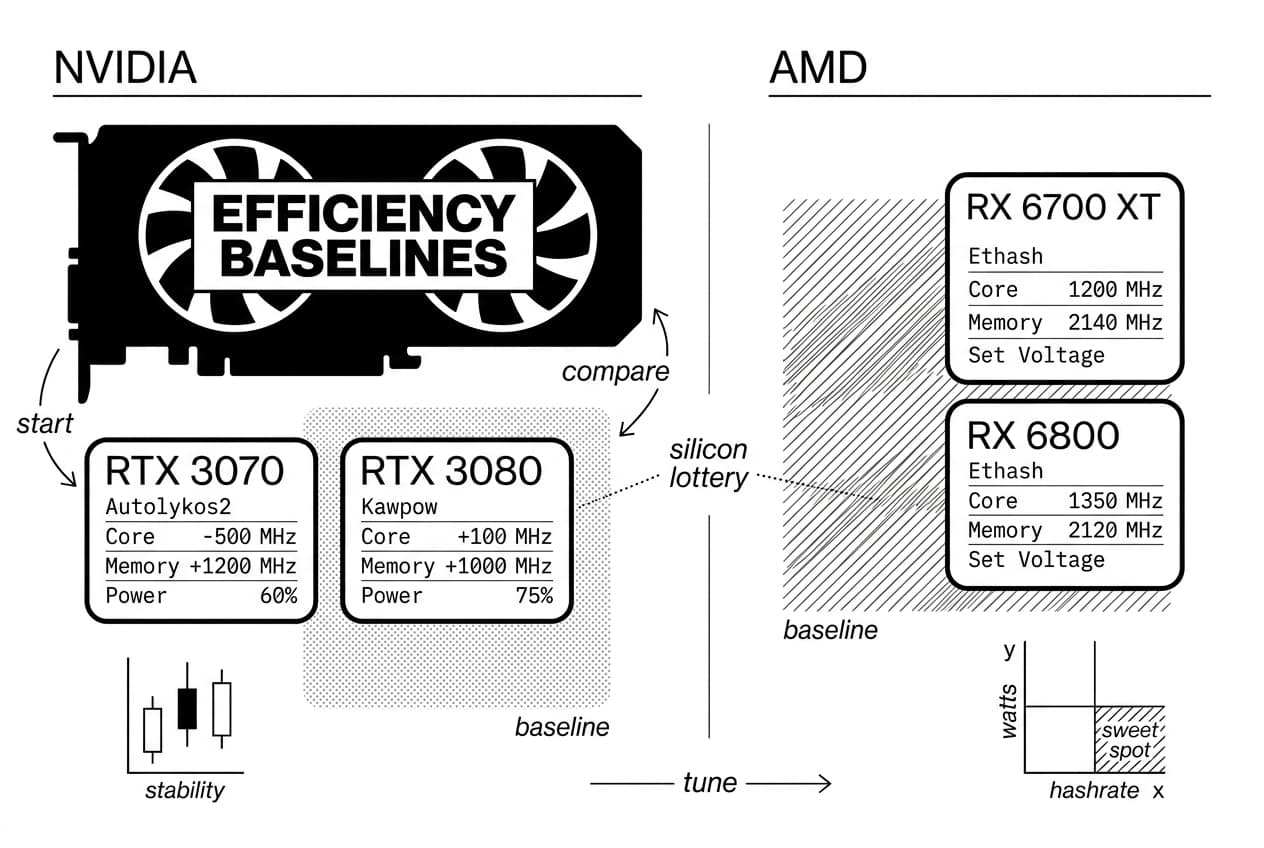
GPU Model | Algorithm | Core Clock | Memory Clock | Power Limit |
|---|---|---|---|---|
NVIDIA RTX 3070 | Autolykos2 | -500 MHz | +1200 MHz | 60% |
NVIDIA RTX 3080 | Kawpow | +100 MHz | +1000 MHz | 75% |
AMD RX 6700 XT | Ethash | 1200 MHz | 2140 MHz | N/A (Set Voltage) |
AMD RX 6800 | Ethash | 1350 MHz | 2120 MHz | N/A (Set Voltage) |
Remember, treat these numbers as a baseline, not a final destination. Every single GPU is different due to the "silicon lottery"—minor variations in manufacturing. Your card might handle a higher memory clock, or it might need less power to remain stable. Use these settings, run your miner, and then begin making the small, incremental adjustments we discussed earlier to find the optimal mining overclock for your specific hardware.
Frequently Asked Questions
- How to overclock a GPU for mining?
- Use a tool like MSI Afterburner to begin. Start by lowering the power limit to improve efficiency. Then, gradually increase the memory clock speed, testing for stability after each adjustment. For many mining algorithms, you can also underclock the core clock to further reduce power usage and heat without hurting your hashrate.
- Is mining on GPU profitable?
- GPU mining profitability is a moving target. It depends heavily on your GPU's hashrate, its power draw, your local electricity cost, and the current market price of the coin you're mining. An efficient overclock is crucial because it directly boosts your potential earnings while keeping your operational costs as low as possible.
- How risky is overclocking a GPU?
- Overclocking does introduce some risk, mainly from extra heat and voltage stress that can shorten your GPU's lifespan over time. However, you can manage this risk effectively. By ensuring your card has proper cooling and making small, incremental changes instead of pushing for extreme settings, you keep the process relatively safe.
- What is the most profitable GPU for mining?
- The "most profitable" GPU changes constantly with new hardware and algorithm updates. The best choice is always the card with the highest hashrate-to-power consumption ratio for your target coin. Cards from NVIDIA's RTX series and AMD's RX series are consistently among the most popular and efficient options for miners.
Sources
Author

Crypto analyst and blockchain educator with over 8 years of experience in the digital asset space. Former fintech consultant at a major Wall Street firm turned full-time crypto journalist. Specializes in DeFi, tokenomics, and blockchain technology. His writing breaks down complex cryptocurrency concepts into actionable insights for both beginners and seasoned investors.