Add Arbitrum to MetaMask: Full Guide for Base & Optimism
Why Add L2 Networks like Arbitrum, Base, and Optimism?
Before we jump into the steps, let's quickly cover why you'd want to venture beyond the Ethereum mainnet. Think of Layer 2 networks, or L2s, as express lanes built on top of Ethereum. They process transactions on their own chain, which results in significantly lower gas fees and much faster confirmation times. This makes interacting with decentralized applications (dApps) cheaper and more efficient for you.
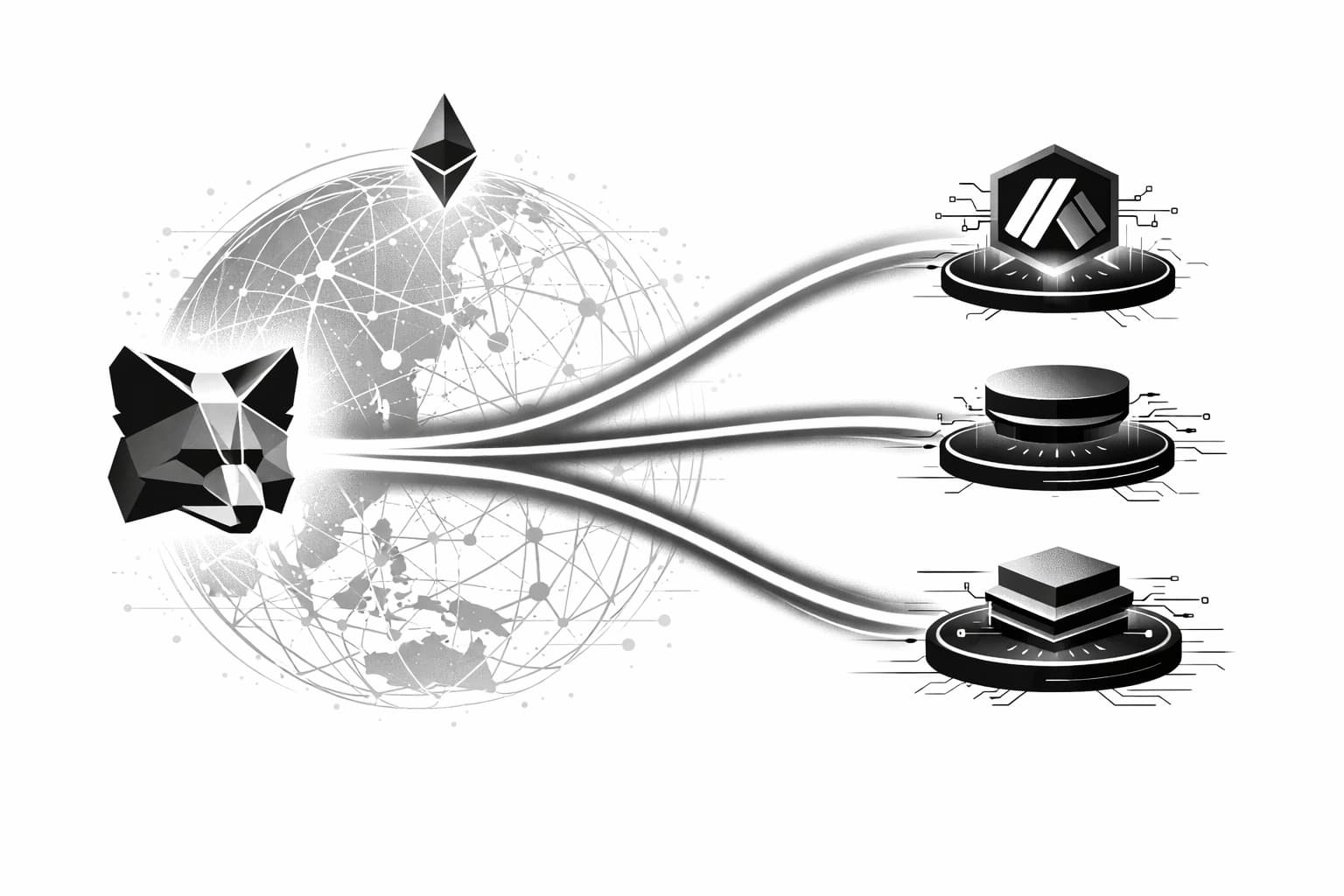
You get all these benefits while still being securely anchored to the main network. L2s like Arbitrum, Base, and Optimism inherit security from Ethereum, giving you the best of both worlds: speed, low cost, and strong protection. This guide will show you exactly how to add Arbitrum to MetaMask, along with Base and Optimism, unlocking a massive new world of DeFi, NFTs, and more.
Prerequisites: What You'll Need
Before we start adding networks, let's quickly confirm you have the basics in place. Getting these two simple things checked off first will ensure the process is straightforward. This quick prep is the first step to successfully add Arbitrum to MetaMask or any other network.
- MetaMask Wallet Installed: You need the MetaMask browser extension installed on a compatible browser like Chrome, Firefox, Brave, or Edge. You should have already completed the initial setup, which includes creating a password and safely backing up your Secret Recovery Phrase.
- Logged Into MetaMask: Make sure your wallet is unlocked. Simply click the fox icon in your browser's toolbar and enter your password if prompted. You'll need to be logged in to access the settings to add new networks.
With MetaMask ready to go, you're prepared for the next step.
How to Add Arbitrum to MetaMask (3 Easy Methods)
Now that you have MetaMask ready, it's time to connect to the Arbitrum network. This is where the magic of Layer 2 begins! We'll walk through three different ways to get this done. For most people, the first method is the fastest and simplest, but it's always good to know the alternatives.
Let's get you set up so you can start exploring the fast and low-cost world of Arbitrum decentralized applications.
Method 1: The One-Click Method with Chainlist (Recommended)
The easiest way to add Arbitrum to MetaMask is by using a trusted tool called Chainlist. It’s a community-managed directory of EVM networks that helps you connect your wallet with just a couple of clicks, eliminating the risk of typos from manual entry.
- Go to the official Chainlist website at
chainlist.org. - In the search bar at the top of the page, type "Arbitrum". You will see "Arbitrum One" appear in the results.
- Click the "Connect Wallet" button next to Arbitrum One. Your MetaMask extension will pop up asking for permission to connect. Approve it.
- Once connected, the button will change to "Add to MetaMask." Click it.
- A final MetaMask window will appear showing all the network details for your review. Click "Approve" to add the network, and then "Switch network" to start using it immediately.
That's it! You have successfully added the Arbitrum One network to your wallet. You can now switch between Ethereum and Arbitrum using the network dropdown menu at the top of your MetaMask extension.
Method 2: Adding via Arbiscan Block Explorer
Another excellent one-click option is to add the network directly from Arbitrum's official block explorer, Arbiscan. This is a great alternative if Chainlist is ever unavailable.
- Manage to the Arbiscan website at
arbiscan.io. - Scroll all the way down to the footer of the page.
- In the bottom right corner, look for a MetaMask fox icon next to the words "Add Arbitrum Network."
- Click this button. A MetaMask pop-up will appear, asking for your permission to add the network.
- Review the details and click "Approve." You'll be prompted to switch to the network, which completes the process.
Method 3: Manually Adding Arbitrum RPC Details
If you prefer to do things yourself or if the automated methods aren't working, you can always add Arbitrum manually. This gives you direct control over the network information your wallet uses.
- Open your MetaMask wallet and click on the network selection dropdown at the top left (it will likely say "Ethereum Mainnet").
- At the bottom of the list, click the "Add network" button.
- A new screen will open. Select "Add a network manually" at the bottom.
- You'll see a form with several fields. Carefully copy and paste the following details into the corresponding boxes:
Setting | Value |
|---|---|
Network Name | Arbitrum One |
New RPC URL | https://arb1.arbitrum.io/rpc |
Chain ID | 42161 |
Currency Symbol | ETH |
Block Explorer URL | https://arbiscan.io |
Double-check that all the information is correct, then click "Save." Your MetaMask wallet is now configured for Arbitrum One.
How to Add Base to MetaMask
Now that you have Arbitrum set up, let's move on to another major player in the Layer 2 space: Base. Developed by Coinbase, Base has seen explosive growth and is home to a vibrant ecosystem of apps and communities. Just like with Arbitrum, you can add Base to MetaMask in a couple of different ways.
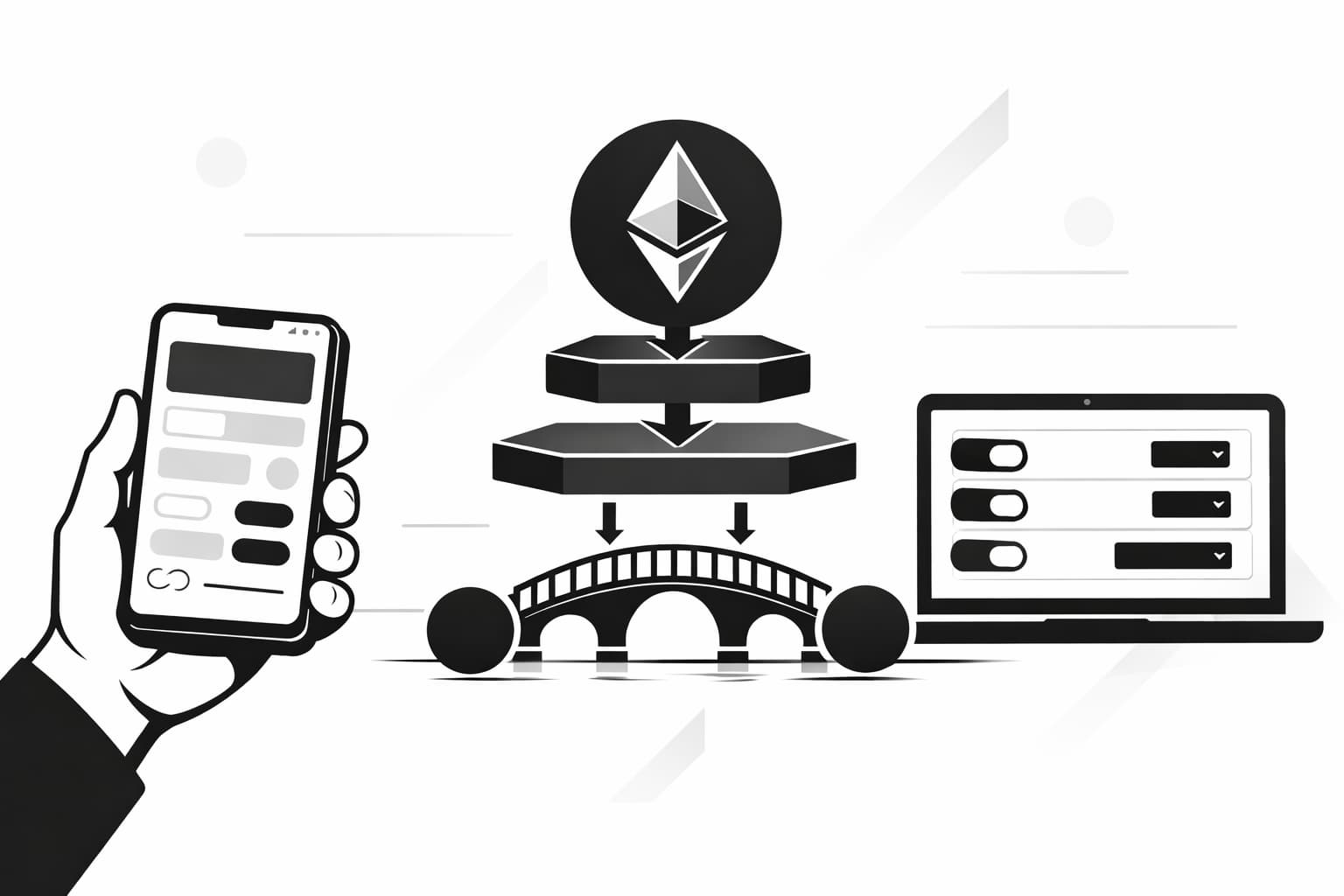
Method 1: Using the Official Base Bridge
The simplest and most secure way to add the Base network is by using its official bridge. This tool is designed to help you move assets from Ethereum to Base, and it handily includes a feature to add the network settings for you.
- Handle to the official Base Bridge website. Always double-check the URL to ensure you're on the legitimate site.
- Click the "Connect Wallet" button and select MetaMask from the list.
- Once your wallet is connected, the website will often detect that you don't have the Base network installed. It will trigger a pop-up in MetaMask asking for your permission to add the network.
- Review the network details presented in the pop-up and click "Approve." MetaMask will then ask you to switch to the Base network. Click "Switch Network," and you're all set!
This automated process removes the risk of typos and ensures you're connecting to the correct, official network endpoint.
Method 2: Manually Adding Base Network Details
If you prefer to add the network details yourself or if the bridge prompt doesn't appear, you can always use the manual method. This gives you direct control and is a great way to understand what's happening under the hood.
Open MetaMask, click the network dropdown at the top-left, and select "Add network." On the next screen, choose "Add a network manually" and enter the following information exactly as shown:
Setting | Value |
|---|---|
Network Name | Base Mainnet |
New RPC URL | https://mainnet.base.org |
Chain ID | 8453 |
Currency Symbol | ETH |
Block Explorer URL | https://basescan.org |
After filling in all the fields, click "Save." The Base network will be added to your list, and you can now switch to it at any time from the network dropdown menu.
How to Add Optimism to MetaMask
You've successfully added Arbitrum and Base. To complete your Layer 2 setup, let's add the final network in our guide: Optimism. This network is known for its speed and low transaction costs, making it another excellent alternative to the Ethereum mainnet. Just like with the other networks, you have a simple one-click method and a manual option.
Method 1: Using the Official Optimism Bridge
The fastest way to get Optimism configured in your wallet is by visiting its official bridge. The site is designed to automatically detect that you don't have the network and will prompt you to add it.
- Handle to the official Optimism Bridge website in your browser.
- Click the Connect wallet button, usually found in the top-right corner. Select MetaMask from the list of options and connect your account when prompted.
- Because you don't have the Optimism network added yet, a MetaMask pop-up will appear asking for permission to add it. It will show you all the network details for verification.
- Review the details to ensure they are correct, then click Approve. MetaMask will ask if you want to switch to the Optimism network now. Click Switch network, and you're all set!
Method 2: Manually Adding Optimism Network Details
If you prefer to input the details yourself or if the bridge method doesn't work for any reason, you can always add the network manually. Go to the network selection dropdown in MetaMask, click Add network, and then choose to Add a network manually. Fill in the fields with the exact information below.
Setting | Value |
|---|---|
Network Name | Optimism |
New RPC URL | https://mainnet.optimism.io |
Chain ID | 10 |
Currency Symbol | ETH |
Block Explorer URL | https://optimistic.etherscan.io |
After you've entered all the details, click the Save button. Your MetaMask wallet is now configured for Optimism, ready for you to explore its ecosystem of dApps.
How to Verify and Switch Between Networks in MetaMask
Congratulations, you've done the hard part! Now for the final, simple check to make sure everything is working as expected. This step confirms that you can easily manage between Ethereum and your newly added Layer 2 networks.
Open your MetaMask wallet extension. In the top-left corner, you'll see a dropdown button, which probably shows "Ethereum Mainnet" by default. Click this button to reveal a list of all available networks.
You should now see Arbitrum One, Base, and OP Mainnet right there in the list. To switch your wallet's focus, just click on the network you want to use. Your displayed balance and assets will now reflect what you hold on that specific chain. You can now effortlessly switch between them whenever you need to.
Next Steps: Bridging Your Assets to L2s
Congratulations! You've successfully added Arbitrum, Base, and Optimism to your MetaMask wallet. You now have access to a world of faster, cheaper transactions. But you might notice your L2 wallet balance is zero, even if you have ETH on the main Ethereum network.
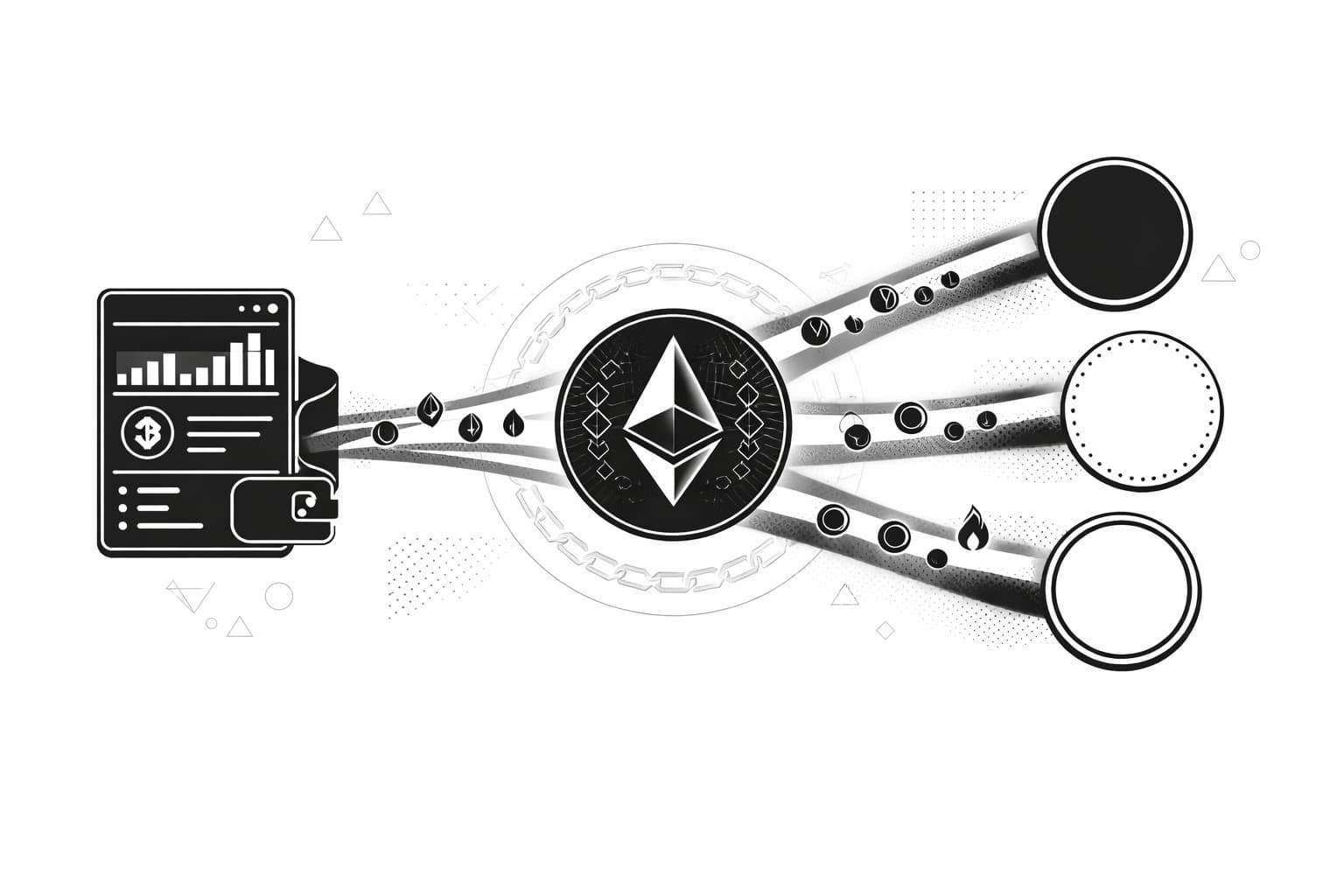
To actually use these networks, you need to move your assets over. This process is called "bridging." You'll send assets like ETH or USDC from the Ethereum mainnet to the Layer 2 network of your choice. Each network has its own official bridge, which is the safest way to transfer your funds.
Remember that initiating a bridge is a transaction on the Ethereum mainnet, so you will need to pay a gas fee in ETH. The good news is that once your funds are on the L2, your transaction fees will be much lower. Just be aware that moving funds back takes some time to withdraw.
With your assets bridged, you're ready to explore DeFi, mint NFTs, and participate in activities like L2 airdrop farming.
Frequently Asked Questions
- Does MetaMask support the Arbitrum network?
- Yes, MetaMask fully supports Arbitrum as an EVM-compatible network. While it isn't included by default, you can easily add it using the methods outlined in this guide. Once added, you can connect your wallet to interact with decentralized applications and manage assets on the Arbitrum network seamlessly.
- Can I add Base to MetaMask?
- Absolutely. This guide shows two straightforward methods for adding the Base network to MetaMask. As an EVM-compatible Layer 2, Base works perfectly with MetaMask once you've entered its specific network configuration details. This enables you to manage your assets and explore the growing Base ecosystem.
- How do I bridge to Arbitrum in MetaMask?
- After adding the Arbitrum network to your wallet, you use a 'bridge' like the official Arbitrum Bridge. You connect your MetaMask on the Ethereum network, then choose the asset and amount to transfer. The bridge sends the funds from your Ethereum address to your same address on Arbitrum.
- Is Arbitrum One the same as Arbitrum?
- Yes, for most users, 'Arbitrum' refers to the 'Arbitrum One' network. This is the primary public Arbitrum Rollup chain used for DeFi and other dApps. There is also a separate chain called Arbitrum Nova, which is optimized for gaming and social applications with lower fees.
Author

Crypto analyst and blockchain educator with over 8 years of experience in the digital asset space. Former fintech consultant at a major Wall Street firm turned full-time crypto journalist. Specializes in DeFi, tokenomics, and blockchain technology. His writing breaks down complex cryptocurrency concepts into actionable insights for both beginners and seasoned investors.